

Open Confluence administration → MCP policies → OAuth for MCP clients. Select Documentation in the page header to open the product guide in a new tab. Its Getting started page contains the connection overview and client setup guides.
Generated desktop setup uses confluence as the connection name. Check existing client entries before installing; do not overwrite another site. Registration names and client IDs identify the calling application and stay separate. See connection naming and migration.
Enable OAuth
-
Click Enable OAuth for MCP.
-
Leave Client metadata documents set to Allowed (default). Compatible clients, including VS Code, need no registration or client secret.
-
Share your organisation’s HTTPS Confluence base URL, including any context path, and the client setup guides.
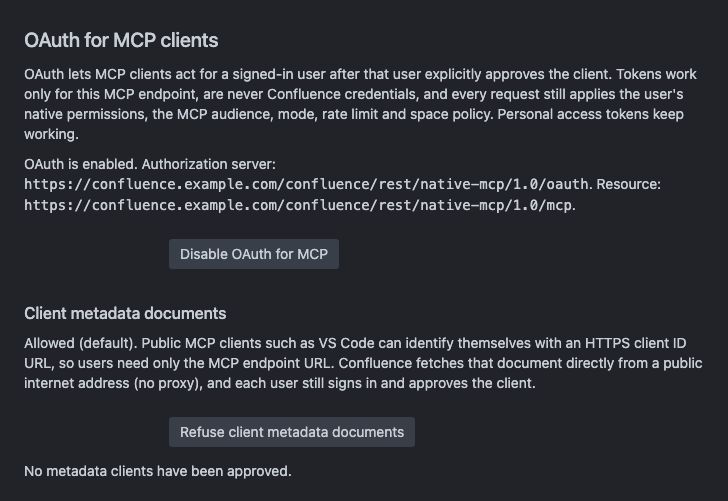
Confluence must reach the client’s metadata host directly. Sites with proxy-only internet access need registered clients.
Register a client only if needed
Expand Register a desktop client to choose a profile. For VS Code desktop, choose Register VS Code client. Expand Connect with VS Code for that registration and use Copy setup link to share it, or Add to VS Code to connect yourself. Each user signs in with their own account. Copy command is a macOS/Linux alternative.
For Cursor Desktop, Claude Code or Codex, choose its Register client button. Profiles use public clients without a secret. An existing public registration containing the required callback is reused; existing grants are preserved.
For Cursor Desktop, Claude Code and Codex, ask your proxy administrator to configure the host-root OAuth discovery mappings. A missing mapping can prevent login even when the client registration is correct.
|
Client |
Setup |
Callback |
|---|---|---|
|
Cursor Desktop |
Expand Connect with Cursor Desktop. Use Add to Cursor Desktop, or merge the copied configuration into |
|
|
Claude Code |
Choose a free callback port and the host used by your client. Copy and run the command in your project, then open |
Default: |
|
Codex |
Choose a free callback port. Merge the copied configuration into |
Default: |
Preserve existing client settings when merging configuration. Each user signs in and approves access with their own Confluence account. Check the displayed callback before approving. These registered-client routes do not require Confluence to fetch client metadata. See MCP client compatibility for verification status.
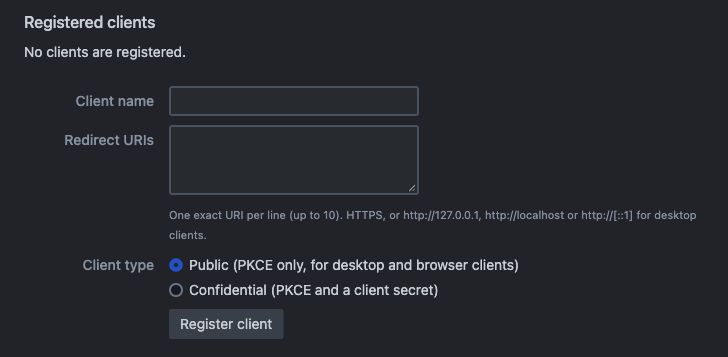
For other clients, expand Register another client and enter the client name and exact redirect URIs supplied by the client. Choose Public for clients without a secret, or Confidential for clients that can store one securely. Click Register client and share its connection settings through an approved channel.
Revoke access
Expand Revoke client access for an approved metadata client, or Remove client for a registered client. Review the effects, tick the confirmation checkbox and select the revoke/remove button to invalidate its codes and tokens. A metadata client can request consent again; a removed registration must be created again.
Refuse client metadata documents stops metadata-client access. Disable OAuth for MCP stops all MCP OAuth access. Both require the displayed confirmation and retain registrations and grants. Remove all OAuth settings deletes registrations and metadata grants, revokes all MCP OAuth codes and tokens, and disables OAuth. Review and confirm its effects before proceeding. Signing out of Confluence does not revoke tokens.
See Security and permissions, OAuth protocol and discovery or Troubleshooting.