Connect VS Code desktop with Copilot to Confluence using your own account. Your administrator gives you a setup link. Screenshots show a local example; use your organisation’s HTTPS address.
1. Open your setup link
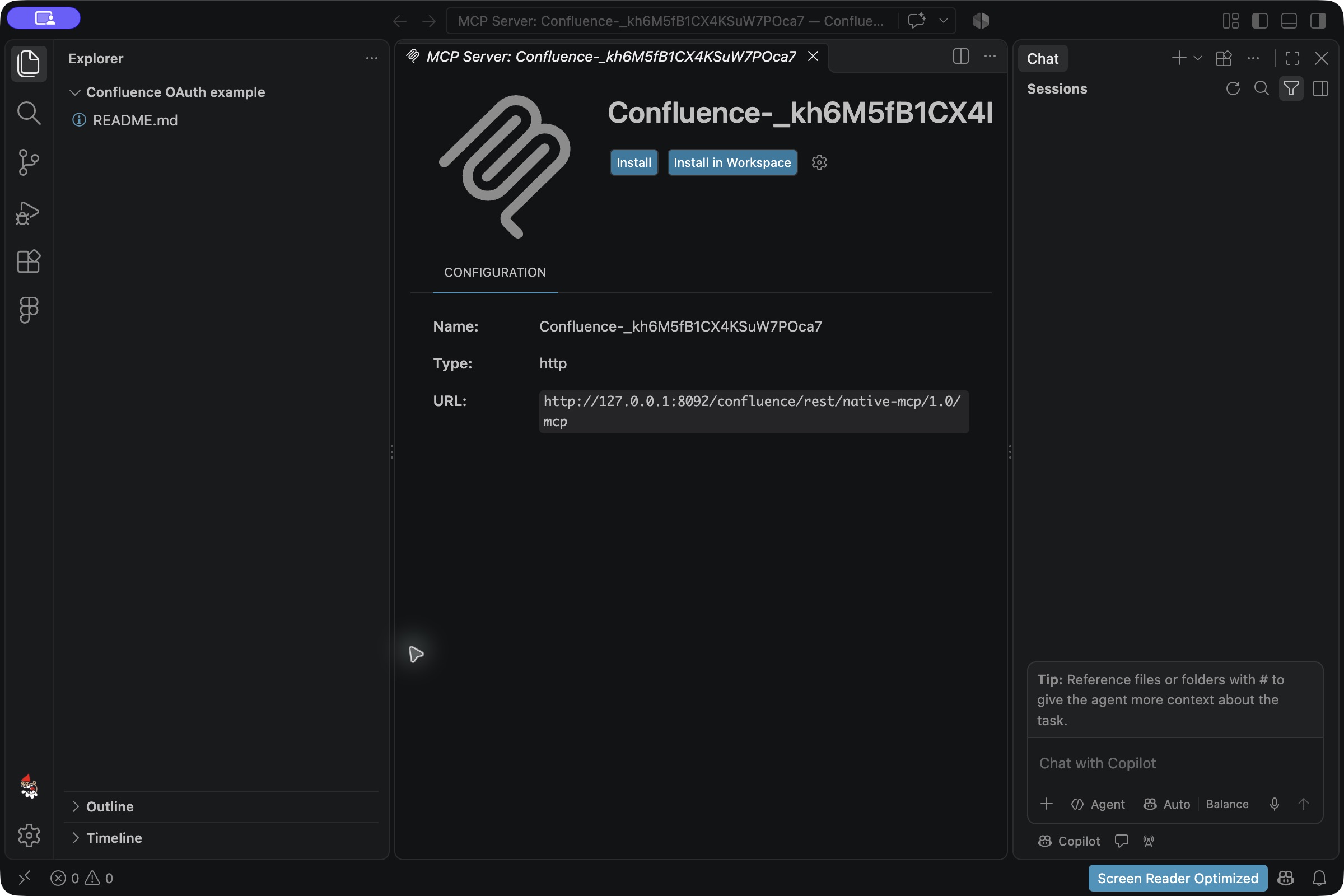
Ask your administrator for the Add to VS Code setup link. Open it, let your browser launch VS Code, review the Confluence address and choose Install. Allow VS Code to open the sign-in flow when asked. No configuration file or terminal command is needed.
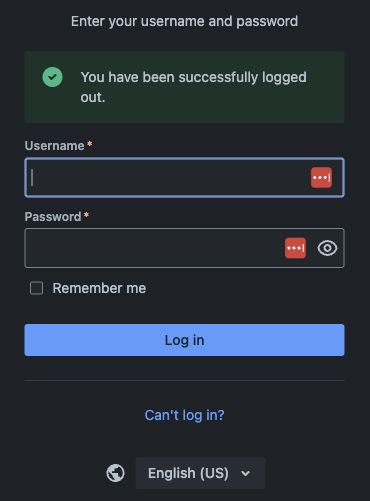
2. Sign in to Confluence
Your browser opens your Confluence site. Sign in with your normal account, or use your organisation’s sign-in method. You do not need administrator access.
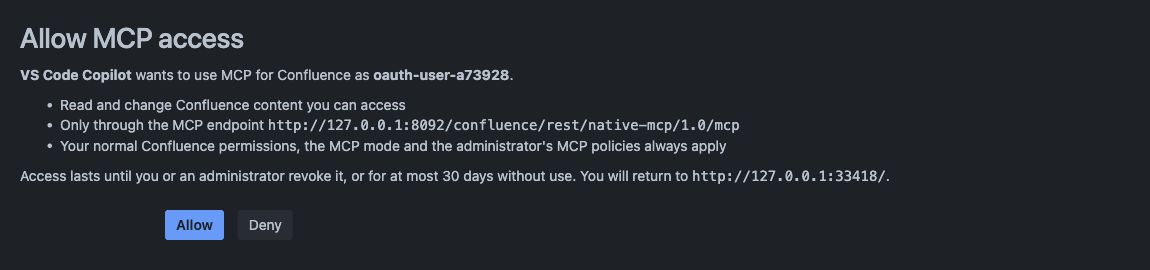
3. Review access and return to Copilot
Check that the client is VS Code Copilot, the account is yours and the requested access is expected. VS Code may request permission to read and change content. Select Allow to continue, or Deny to stop.
In Copilot Chat, select Local and Agent mode. Check that the Confluence tools are available. Ask Copilot: Which Confluence account am I connected as?
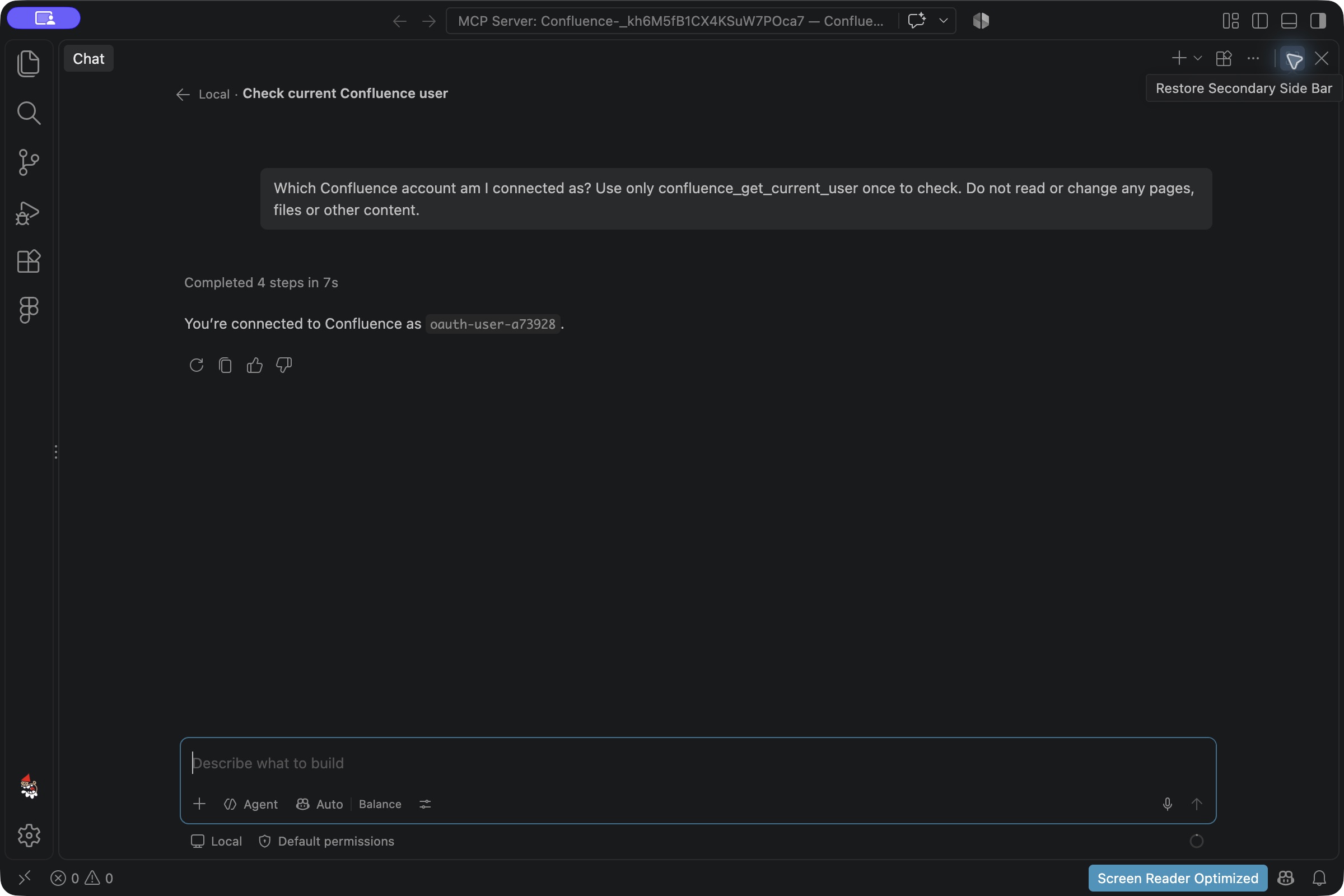
The client can act only within your Confluence permissions and the administrator’s MCP policies. Ask your administrator to remove the client if its access must be revoked.
Administrator setup
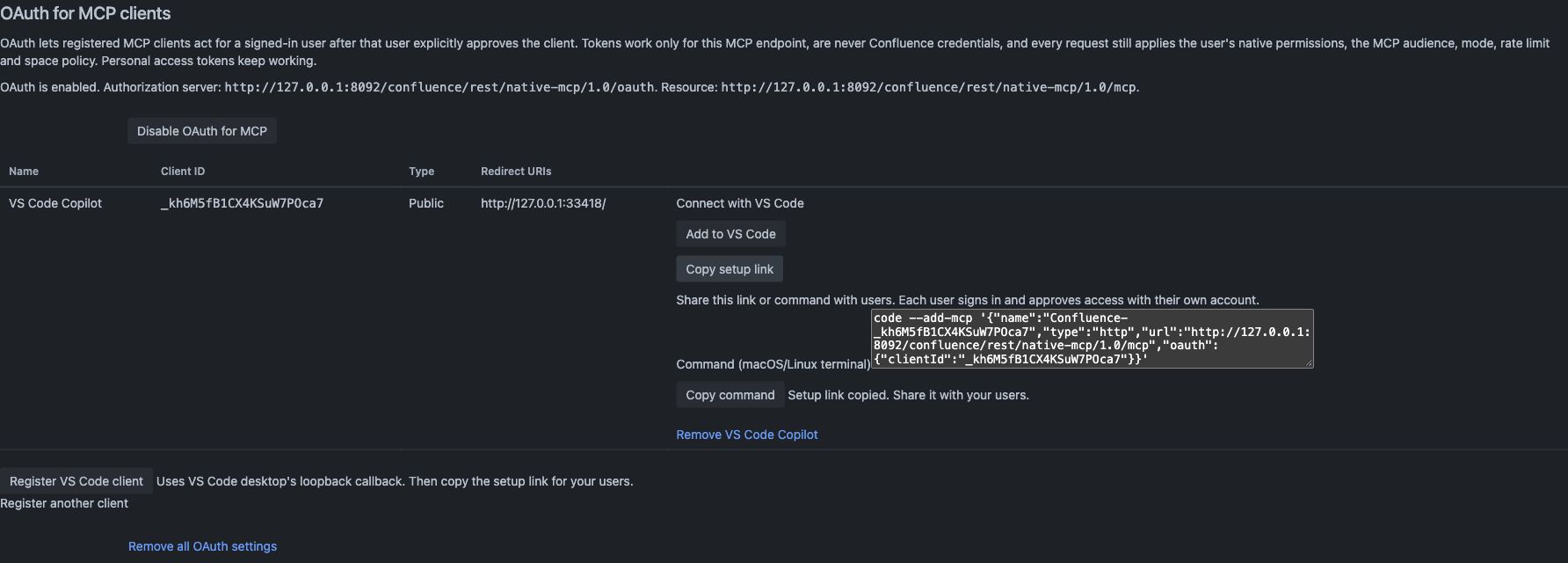
Open Confluence administration → MCP policies → OAuth for MCP clients. Enable OAuth, choose Register VS Code client, then expand Connect with VS Code and choose Copy setup link. Share that link with your users; they sign in with their own accounts. Copy command is an alternative for macOS/Linux terminal users with the code command installed.
Use your organisation’s HTTPS Confluence address. See Developer and technical integration for proxy settings.