

Open the guided VS Code setup →
Connect GitHub Copilot Chat in VS Code to MCP for Confluence Data Center using your own Confluence personal access token (PAT). The screenshots show an example hostname; replace it with your Confluence site.
Before you start
MCP for Confluence Data Center must be installed on your Confluence site. Have your Confluence site address and PAT ready. See Connect your MCP client for token creation and the connection settings.
1. Choose Local chat
Open VS Code and sign in to GitHub Copilot Chat. Start a new chat, choose Local from the chat-type selector, and select Agent.
This guide uses the Local chat mode available in VS Code 1.142. It supports the secure input prompt below. The Copilot chat type does not receive connections that require interactive input variables; see Microsoft’s MCP configuration guidance.
2. Add the connection configuration
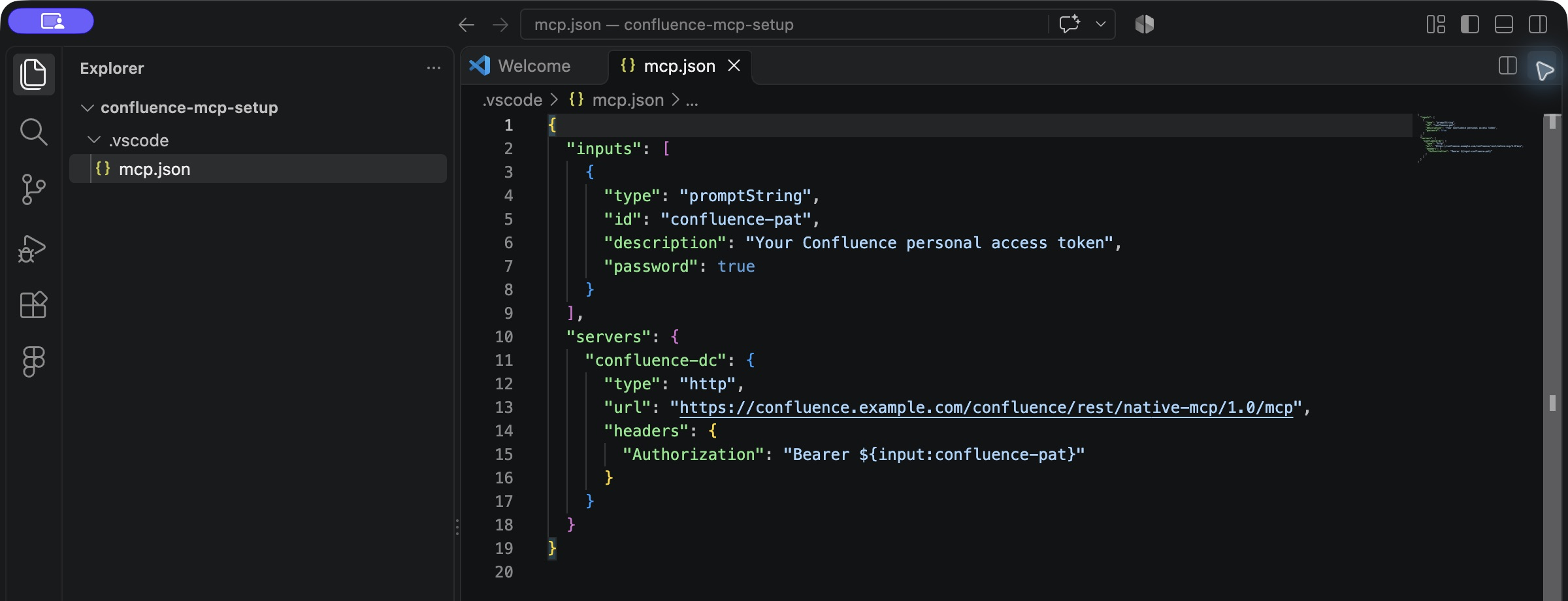
Open the folder where you want to use Confluence. In the Explorer, create a .vscode folder and a file named mcp.json inside it. Add this configuration. If the file already exists, merge these entries into its existing inputs and servers sections.
{
  "inputs": [
    {
      "type": "promptString",
      "id": "confluence-pat",
      "description": "Your Confluence personal access token",
      "password": true
    }
  ],
  "servers": {
    "confluence-dc": {
      "type": "http",
      "url": "https://confluence.example.com/confluence/rest/native-mcp/1.0/mcp",
      "headers": {
        "Authorization": "Bearer ${input:confluence-pat}"
      }
    }
  }
}
Replace https://confluence.example.com/confluence with your Confluence site’s base address, including its context path if it has one. Keep /rest/native-mcp/1.0/mcp at the end.
Leave ${input:confluence-pat} exactly as shown. It refers to the secure token prompt. Your PAT goes into that prompt, rather than into this file. The password: true setting hides the characters you enter. See Microsoft’s input-variable reference.
3. Start the connection and enter your PAT
-
Save
mcp.json. Open the Command Palette with Ctrl+Shift+P on Windows/Linux or Cmd+Shift+P on macOS. -
Run MCP: List Servers, select confluence-dc, and choose Start Server. Review your workspace configuration if VS Code asks you to trust the folder.
-
When VS Code asks for Your Confluence personal access token, paste only the PAT and press Enter. The configuration already supplies the
Bearerprefix.

VS Code securely stores the entered value for reuse. Keep the PAT out of the configuration file, chat messages and screenshots. The screenshot above shows the empty secure input before a token is entered.
4. Enable the Confluence tools
In your Local chat, open Configure Tools and enable the tools from confluence-dc.
For search, summary and saving examples, see Example prompts and responses.
If the connection fails
-
No Confluence tools: check that this is a Local chat, the server is started and its tools are enabled.
-
Authentication fails: check that the PAT is valid for this Confluence site and that you entered the token without an extra Bearer prefix.
-
Endpoint not found: check the site address and context path in
url.
For connection details, use MCP: List Servers → confluence-dc → Show Output. See Troubleshooting for further help.