

About this example
This page covers setup of the supplied Power Automate flow. For Power Automate product help, see Microsoft’s documentation.
You need a Power Automate licence that supports the HTTP trigger and Outlook connector, and a Microsoft account with access to a test calendar.
1. Import the example flow
Create a test Outlook calendar. In Power Automate, open My flows → Import → Import Package (Legacy) and upload planning-sync-outlook-direct-example.zip below. The package and flow are named Planning Sync Outlook compatible upgrade. Choose Create as new, give the flow a recognisable name, then select your Outlook connection during import. Keep the flow off while preparing it.
planning-sync-outlook-direct-example.zip
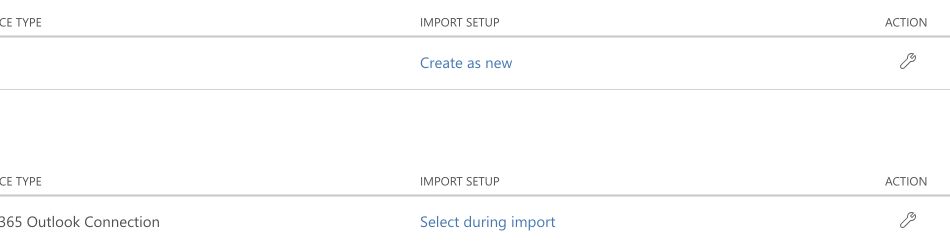
A successful import does not finish setup. The portable HTTP trigger initially allows only an unusable placeholder identity. Complete your chosen authentication guide before turning the flow on; the signed webhook URL setup does not require an Azure verifier.
2. Choose the Outlook calendar
Open Recipe configuration. In Inputs, set calendarName to the exact calendar name and timeZone to a time zone available in the Outlook action. The defaults are Planning Sync and Amsterdam/Berlin time.
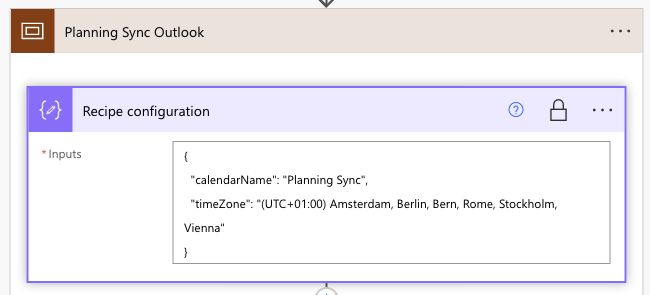
3. Configure access, then connect Planning Sync
Choose Signed webhook URL for the simpler setup. Use Signed webhook URL + shared secret only if your organisation requires the extra credential. Each guide shows the Power Automate setting and matching app setting.
The flow matches appointments by the complete occurrence ID. Keep that identifier and its mapping unchanged when customizing the flow. To add the destination in Planning Sync, follow Outbound destinations in the user manual, then use the shared Outlook validation and troubleshooting guide for the lifecycle checks.
Optional date-only support
In Advanced settings > How plans are sent, enable Send plans without a start time as date-only. The current direct example flow supports this indicator. It shows these plans as all-day appointments and keeps the planned hours in the appointment body. Other start times stay timed.
This is off by default. Also includes plans deliberately starting at 00:00, because Tempo reports them in the same way. Existing flows keep working with the option off. Update your flow before enabling it.