

Compare the connection options
Signed webhook URL is the default authentication choice for a new Power Automate destination. This guide explains the supplied Outlook flow’s configuration. The authentication choice does not change duplicate prevention: the flow must still update the appointment matching the complete occurrence ID. Existing connections can preview their accepted sync history without a receiver upgrade. No installation/review checkbox is required.
This guide applies to the current compatible Outlook setup. An existing connection using an HMAC signing secret retains that original authentication; do not reinterpret its secret or change its flow merely to preview sync history. Optional live Outlook comparison is a separate capability.
Choose this when
You want the fewest services to manage, and your organisation accepts a private webhook URL as the access credential. You need Planning Sync and Power Automate, with no Azure verifier to maintain.
The complete URL already contains a secret signature. Anyone who obtains the full URL can call the flow. Keep it private, as you would a password. “Signed URL” protects access through the URL; it does not separately sign each request's contents.
Prerequisites
-
Planning Sync administration access, an active licence and Tempo connected.
-
A Microsoft account with access to the Outlook calendar.
-
A prepared Outlook flow. For a new integration, follow Prepare the Outlook flow first. That subpage provides the downloadable planning-sync-outlook-example.zip example, Power Automate import instructions, Outlook connection, calendar and time-zone setup. Keep the flow off during preparation, then return here and start at 1. Configure signed webhook URL access.
Already have a working Outlook flow? Preserve its URL, calendar and mappings. Do not replace or import a new flow just to preview sync history.
1. Configure signed webhook URL access
-
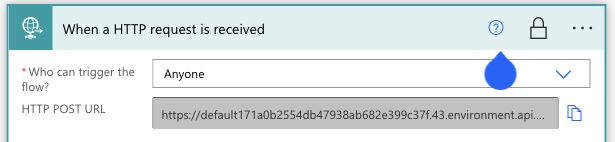
Open your prepared Outlook flow. In the HTTP trigger, set Who can trigger the flow? → Anyone. In this mode, possession of the complete signed URL grants access.
-
Leave Direct secret configuration → Inputs exactly empty. If it contains a configuration-parameter expression, the parameter it reads must be empty.
-
Save, turn on the flow, and copy the complete HTTP POST URL. Keep everything after the question mark, including
sig.
2. Add the destination in Planning Sync
-
Open Apps → Planning Sync → Outbound. For a new setup, choose Add Destination to open the Power Automate form. Its Outlook integration guide link contains the Outlook-specific setup instructions. For an existing working connection, edit that connection and keep its saved URL and mappings unchanged. You do not need to create another destination or add live comparison merely to preview its history.
-
Enter a recognizable Destination name. Paste the complete signed HTTP POST URL into Power Automate webhook URL and choose Authentication → Signed webhook URL.
-
Open Advanced settings. Keep Plan created, Plan updated and Plan deleted selected. Under How plans are sent → Delivery format, choose Daily events with start and end times. Keep the automatically prepared Event payload and leave Customize payload and Customize delivery settings closed. The Outlook flow guide lists the exact configuration. Preserve an existing connection’s original payload and timing settings.
-
Keep Enable automatic delivery unchecked for the first review. When you are ready to save a real connection, choose Create destination (or Save changes when editing). Saving the app connection does not install or change Power Automate.
The two settings must match. The app sends no additional-secret header in URL-only mode; it does not remove the flow’s secret check for you. An empty flow secret configuration also allows original headerless events, while queued requests keep their original format and credentials.
3. Check the result
Open Preview planning sync and prepare a preview. An existing receiver’s Sync history results compare proposed requests with prior accepted deliveries, without inspecting Outlook or changing appointments. Already synced is prior acceptance of the same request, not a promise that it will be skipped on resubmission. A connection configured for optional live comparison instead reads the current calendar; resolve any Unable to verify result there.
For an isolated test, enable forwarding, refresh the preview, and submit the intended occurrence twice. Check Outlook itself: the same complete occurrence ID must still identify one appointment. Change a synchronized time or description and repeat; the same appointment should update from Tempo. Afterwards restore the intended disabled state. See Preview planning sync.
If access needs to change
For a planned change, let queued work finish and resolve held deliveries first; then disable forwarding while changing the settings. If the URL has been exposed, turn the flow off immediately and have its owner replace the signed URL. Update the app and review outstanding deliveries before resuming.
To require a second credential, follow the separate shared-secret option from the connection choice guide.