

Send existing Tempo planning to one outbound connection when setting up an integration or refreshing its calendar.
Before you start
You need Planning Sync administration access, Advanced edition with an active licence, and saved Tempo authentication. Save a configured outbound connection subscribed to plan.created. Where preview is available, you can inspect it while forwarding is disabled; enable and refresh before submitting. For later live changes, also select plan.updated and plan.deleted and enable the matching Tempo listeners.
First verify the receiving flow with a test calendar. Both create and update must upsert by the complete occurrence ID. Keep the environment/source key stable and use separate keys for staging and production.
Which planning is included?
|
Planning |
Selection |
|---|---|
|
Ongoing plans |
Included when they have an eligible occurrence today or later, even if they began earlier. |
|
Finite plans |
Today and future planning, including dates beyond the next 12 months. Verify discovery coverage against your expected Tempo planning. |
|
Open-ended repeating plans |
Daily occurrences are expanded through 12 calendar months after the captured date. |
|
Past-only or excluded plans |
Not sent. Existing global project and work-item-type scope applies. |
|
Unsupported or invalid plans |
Shown with a skip reason. Only supported Jira-issue planning can be exported. Generic resources do not imply Outlook mailbox access. |
“Today” uses the initiating administrator’s Jira profile timezone and is captured once at the start. A run crossing midnight keeps that date. Daily modes send eligible dates only, with stable IDs. Whole-plan modes send the original eligible plan, which may include historical dates or unbounded recurrence; use the daily strict preset for the Outlook recipe.
Manual sync sends plan.created requests to the selected connection. It does not edit Tempo planning, update Jira fields, change approvals or invoke native Jira Automation. Allocation counts and delivery counts differ: one multi-day allocation can produce several daily requests.
Preview and send planning
-
In Outbound, open the destination’s actions menu and choose Preview planning sync. Choose Preview sync to prepare results. Opening or preparing a preview sends nothing.
-
Review the saved planning scope and counts: Unchanged, Update and New. The helper reads “Based on previous deliveries. All plans will be sent.” New means no accepted delivery is recorded, not that the receiving system has no matching item. The receiving flow handles repeated requests.
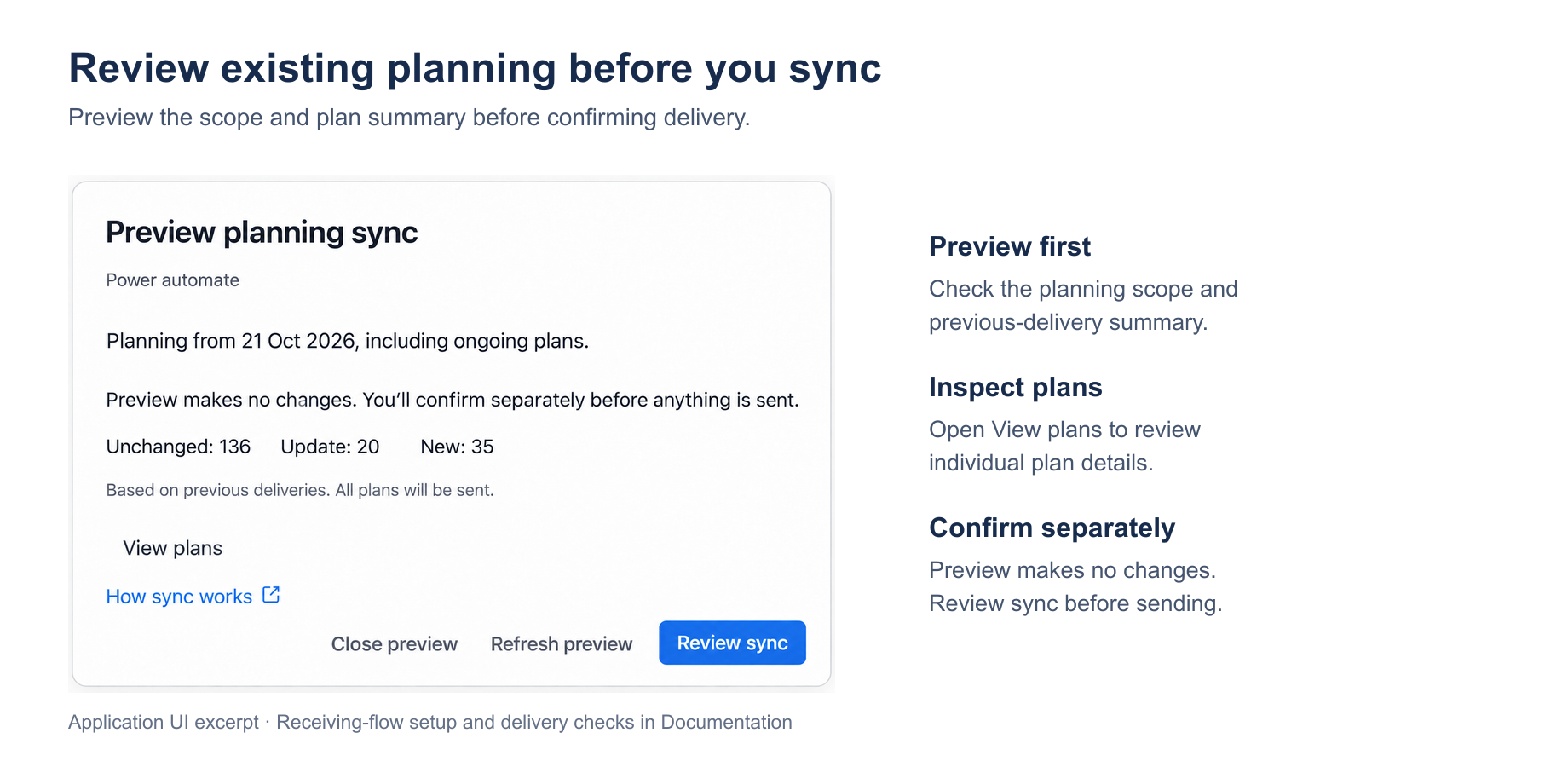
Preview existing Tempo planning before sending. Review the scope and plan summary, inspect individual plans, then confirm synchronization to your configured receiving flow. -
Use View plans for the issue, person, dates and comparison. Exceptions include a reason. Hide plans collapses the table. Technical details holds IDs, date provenance, counts, optional request bodies and the Diagnostic details selector for Failed requests or Skipped plans. Loading, errors and empty lists are clearly distinguished. Request inspection can be closed and is cleared when changing plan pages or filters.
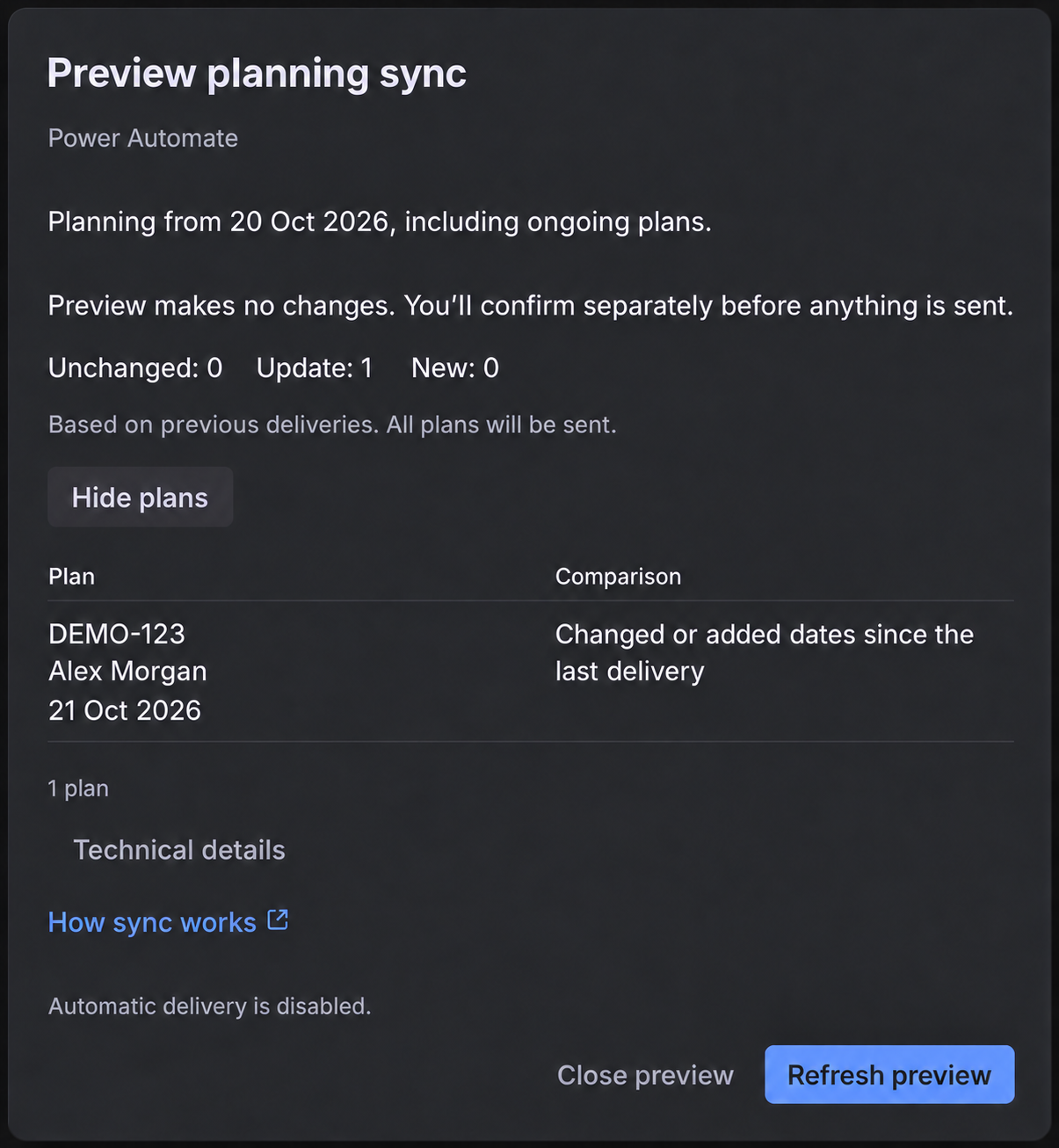
Example plan comparison. Identifying details have been replaced. -
For a valid, enabled destination, choose Review sync. A concise confirmation shows the destination and actual request/plan sending summary. Back to preview returns without sending; Send plans confirms submission. Progress then shows requests accepted by the destination. Use View saved preview if you need the snapshot again. Acceptance does not mean the receiving flow has finished processing.
When Automatic delivery is disabled. appears, you can still review without sending. Enable the destination from Outbound and refresh before submission. Outdated results have one warning and are labelled Previous preview; use Refresh preview. Exact expiry remains in Technical details with a readable date, time zone and UTC offset. The open view updates when expiry passes, including disabling confirmation.
Close preview, Escape or clicking outside closes an idle saved preview without refreshing or sending. During loading or active checks, closing asks for confirmation and checks can continue without sending. Pending submission cannot be dismissed or submitted twice. Back to destinations leaves a confirmed sync running. How sync works remains available in every view.
Past-only and deliberately out-of-scope plans are omitted; in-scope problems stay visible. Plan lists use five records per page, with pagination only when needed. A separate live comparison uses current destination data and retains change-only submission. Neither this preview nor a second sync requires a receiver-upgrade checkbox.
Use the destination’s last-submitted timestamp in Planning sync to open Sync activity for saved delivery problems and retry controls. Historical failures are separate from this preview.
Verify the result
A repeat sync updates the same appointment. The app preserves each complete occurrence ID. The receiving flow must find that ID and update a match, creating an appointment only when no match exists. This prevents duplicate creation on sequential repeats; synchronized fields are expected to take Tempo’s current values. An accepted webhook request can precede Outlook processing, so inspect the flow run and calendar as well as the app’s history.
-
Discovery is complete. If it is incomplete, resolve the reported problem before treating the run as a full export.
-
Review failed and skipped items. Every expected exclusion should have an understood reason; unresolved failures mean work remains.
-
Compare eligible Tempo planning with the exported dates, including ongoing and far-future plans. One allocation can produce several daily requests, so allocation and appointment counts need not match.
-
Check Power Automate run history. Investigate failed or waiting Outlook actions, even when the webhook was accepted.
-
Verify appointments in the target calendar: expected dates and times, full occurrence keys, and no duplicates after a repeat sync.
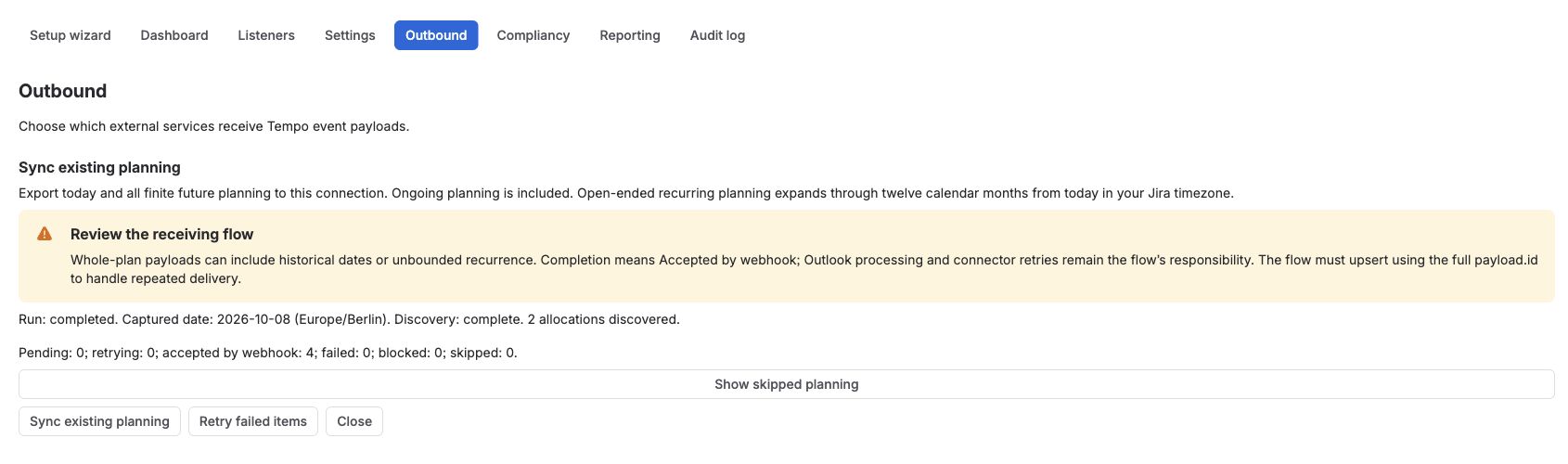
An empty result means no eligible planning was found by that run. It does not establish that permissions exposed every expected plan. See Delivery status and recovery when any check fails.